
GPX2160
The popularity of IP Phones has risen over the years for a number of reasons. Cheaper operating costs, higher quality of calls and also being able to take a call anywhere!
These phones have a ton of features to help efficiency and productivity. Let’s dive in
The popularity of IP Phones has risen over the years for a number of reasons. Cheaper operating costs, higher quality of calls and also being able to take a call anywhere!
These phones have a ton of features to help efficiency and productivity. Let’s dive in

Download our phone guide
https://docs.google.com/document/d/1_pcFBevJkdjzJADo-r9p-PYCMuxuyQuyGEPgX3Sa2LA/edit
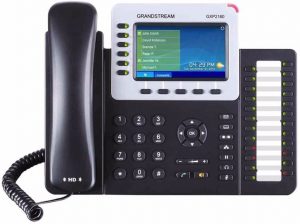
GETTING TO KNOW YOUR PHONE
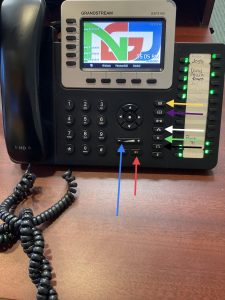 Everyday buttons: In the images below are some of the main buttons you’ll most likely use every day, so let’s identify them!
Gold: View voicemail messages
Purple: View and Edit contact information
White: Transfer a conference call
Green: Put a call on hold.
Black: Switch to headset mode
Blue: Volume Control
Red: Mute Button
MUTE BUTTON
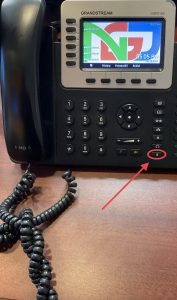
A big issue many users run into is ‘Mute” or ‘Do Not Disturb’ button. When this is pressed, the phone will go into silent mode. Calls will be silenced, a tricky feature if being used for customer call ins. This button is also useful if you need to mute the microphone during a call.
In case you accidentally pressed the Mute button, the phone system will display a ‘Do Not Disturb’ message until it is turned back off.
PARKING A CALL
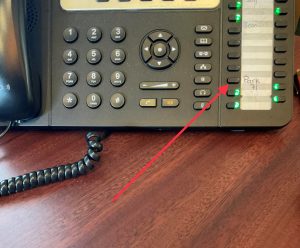 In a work environment, different workers handle different roles. Parking a call for someone becomes important to the efficiency of the office, for not only the employee but the client on the other end as well. Let’s dive into how
Step 1: After you’ve received a call and decided it is not for you, turn attention to the programmable keys! You will generally have a ‘Park’ key already programmed into the phone like in the photo below.
- Here at NextGeneration Designs we have ours labeled as ‘Park 71’
Step 2: After you’ve located this key, clicking this button during a call will “park” the caller in a queue.
- After you’ve engaged the park feature, you can now hang up the phone. But then what? Call forwarding!
CALL FORWARDING
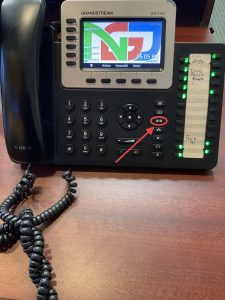 Want to pass the buck? Kick the can down the road? Or maybe the call isn’t just for you. Call Forwarding is a great way to get a call to a coworker without having to get out of your chair!
Step 1: After the call has been received, you’ve determined that it needs to be parked, so what is the next step? Pressing this button will pull the call out of the “parking queue” and now can be transferred to an employee.
VOLUME CONTROL
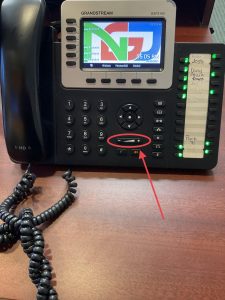 Depending on the work environment, a certain level of quietness may be desired. Adjusting the ringer volume may be of help in a big warehouse with lots of ambient noises or maybe in a medium sized library, the ringer volume can be adjusted to your liking
HISTORY BUTTON
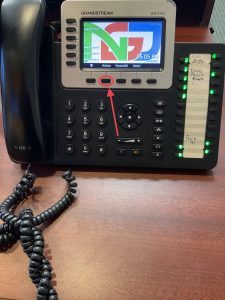 The history button is great for recovering a phone number you need or have forgotten.
*The history button can be programmed somewhere else on the phone*
HOW TO CONFIGURE YOUP IP PHONE
Configuring an IP phone is an important part of the initial setup process. It allows you to set up your phone and all its many features through a Web browser instead of trying to do so on a small LCD screen.
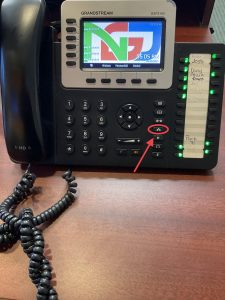
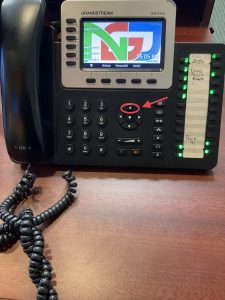 Step 1: Press the Up Arrow button as shown.
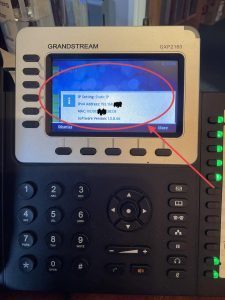 Step 2: You will see some important information flash across the screen. Things like IP address and MAC address are shown.
Step 3: After you have identified this information, simply enter the IP address into the URL and away you go!
Tech Tip: Username and Password are ‘admin’ respectively.
HOW TO CUSTOMIZE YOUR BACKGROUND
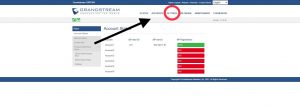 Step 1: Access the Phones web page through your preferred Web Browser (hint: See ‘How to Configure your IP Phone’). After providing the correct credentials, your page should look like it does in the photo below.
Step 2: Click Settings located across the top of your screen.
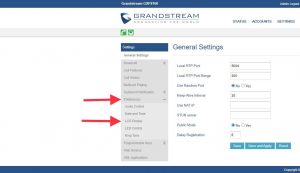 Step 3: Select the drop down ‘Preferences’ and then select ‘LCD Display’
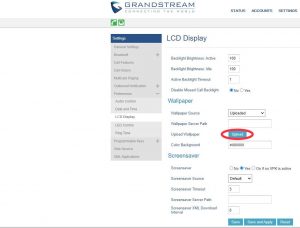 Step 4: Locate the ‘Upload’ button. Click this and you will be able to upload any type of photo.
- Tech Tip: Photos must be in JPG format.
CONFERENCE CALLING
 Add a third party to your calls with a few simple steps. Lets dive in!
Step One: While on a call, engage the ‘Conference’ button listed below
Step Two: After you’ve engaged the button above, you will go ahead and dial the number/extension of who you are trying to reach.